
Docs
Getting started with Dayslot
From installing to the first order with a delivery date — about 10 minutes.
1. Install
Step-by-step guides: Set up delivery time slots in WooCommerce or Set up local pickup scheduling in WooCommerce.
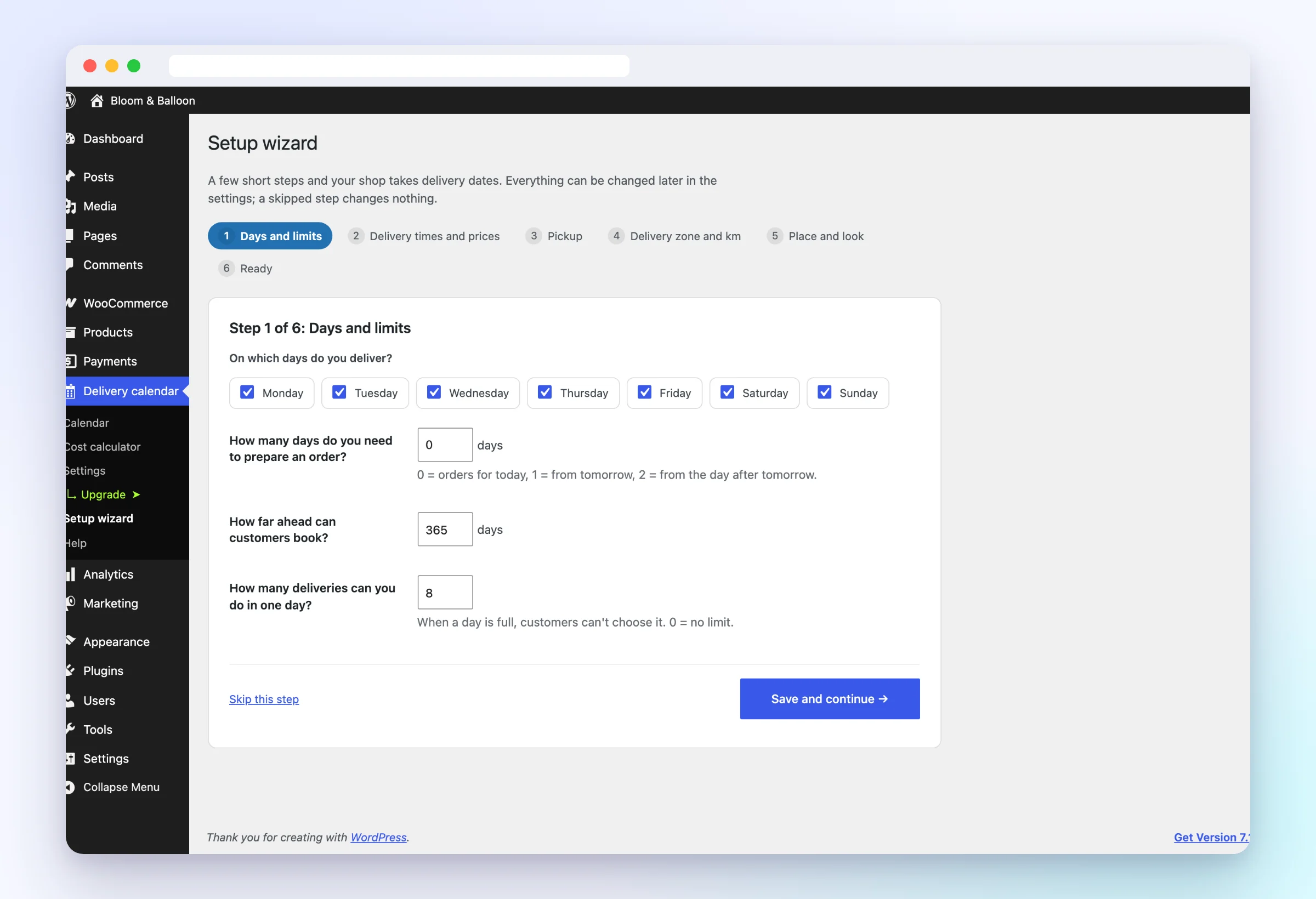
2. Setup wizard (5 minutes)
The wizard opens right after activation: working days, preparation time and deliveries per day; delivery times and prices; pickup; where the picker appears and how it looks. Each step can be skipped and the wizard can be run again any time (Delivery calendar → Setup wizard).
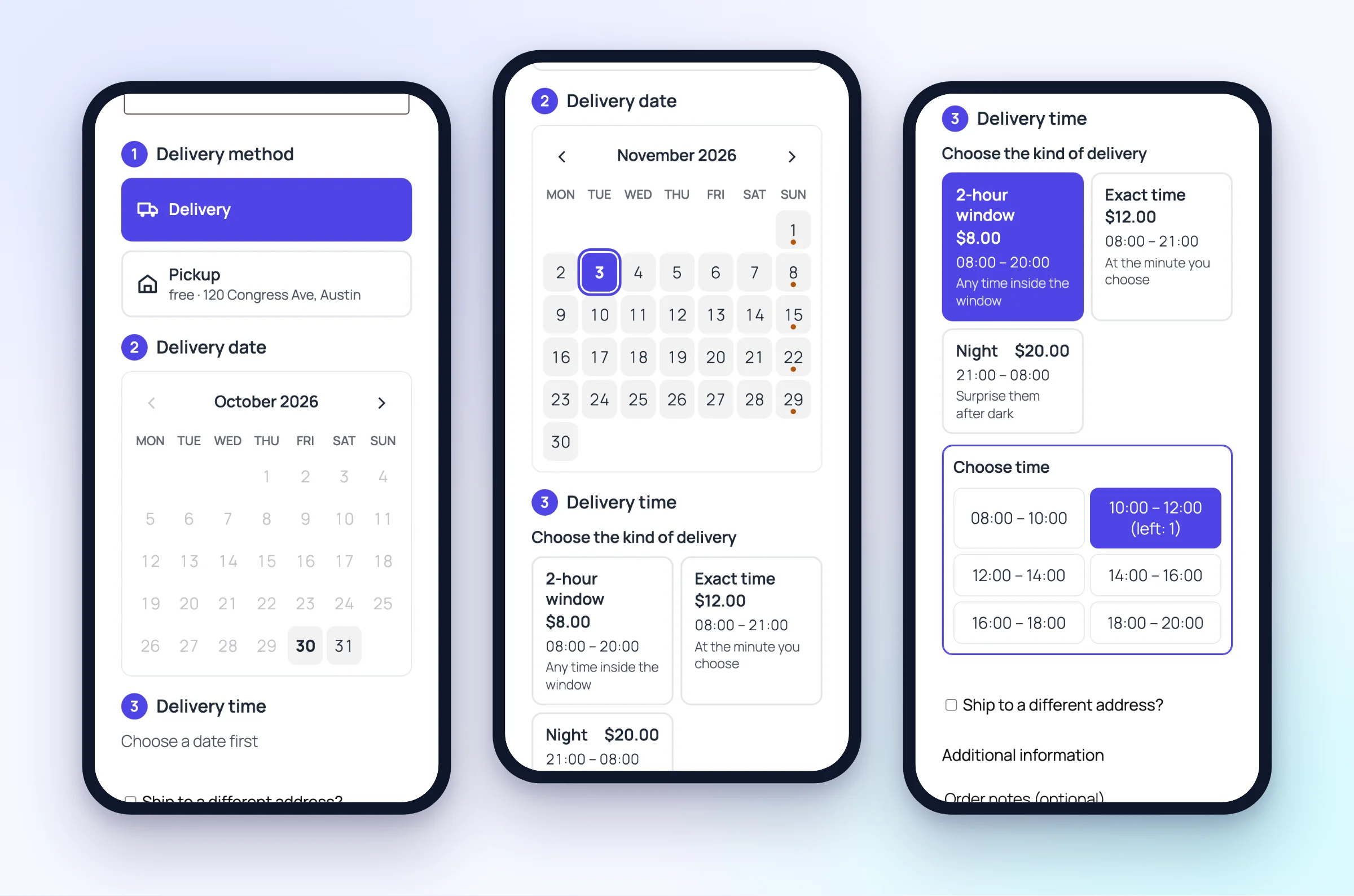
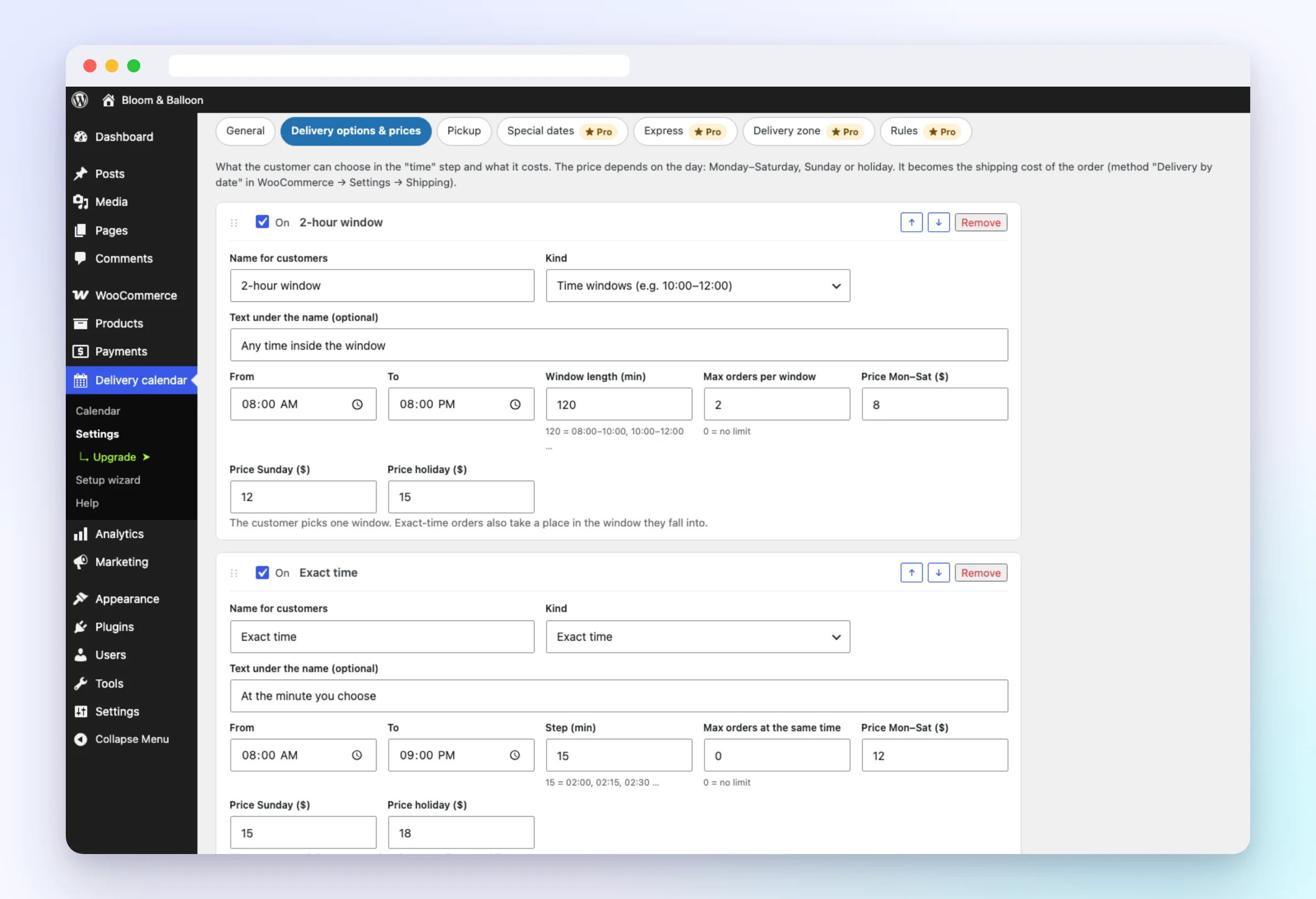
3. Delivery kinds and prices
Delivery calendar → Settings → Delivery → Delivery options & prices. Time windows (e.g. 2 hours), an exact time (every 15 minutes) and night delivery past midnight. Each kind has a price for Monday–Saturday, Sunday and holidays and a limit of orders.
Free delivery from an amount or always free: Delivery → Free delivery.
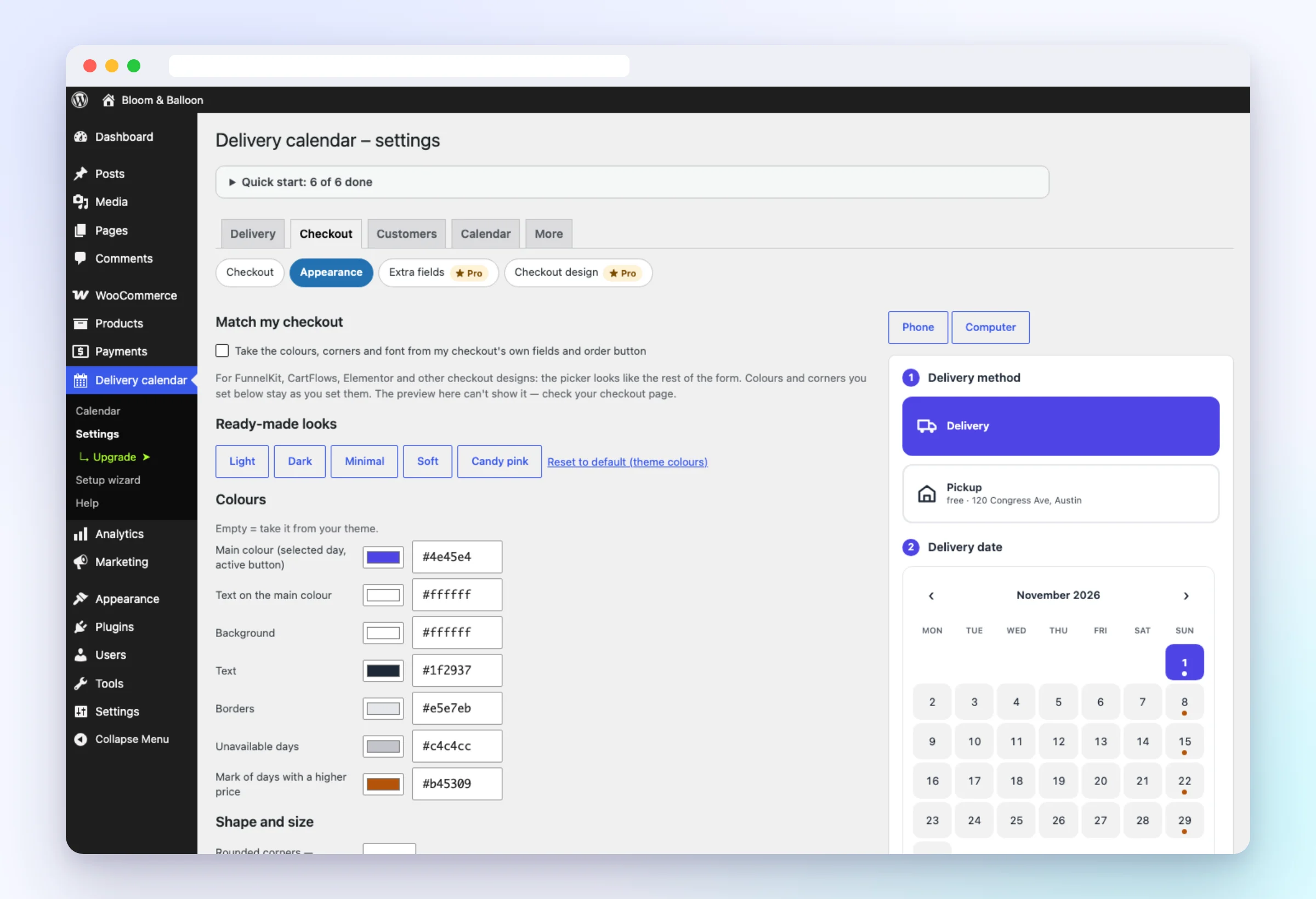
4. Place and look at checkout
Settings → Checkout: before or after the address, or exactly where you want with the “Delivery date & time” block, the Elementor widget or [dayslot_checkout_field]. Appearance: colours, corners and ready-made looks with a live preview.
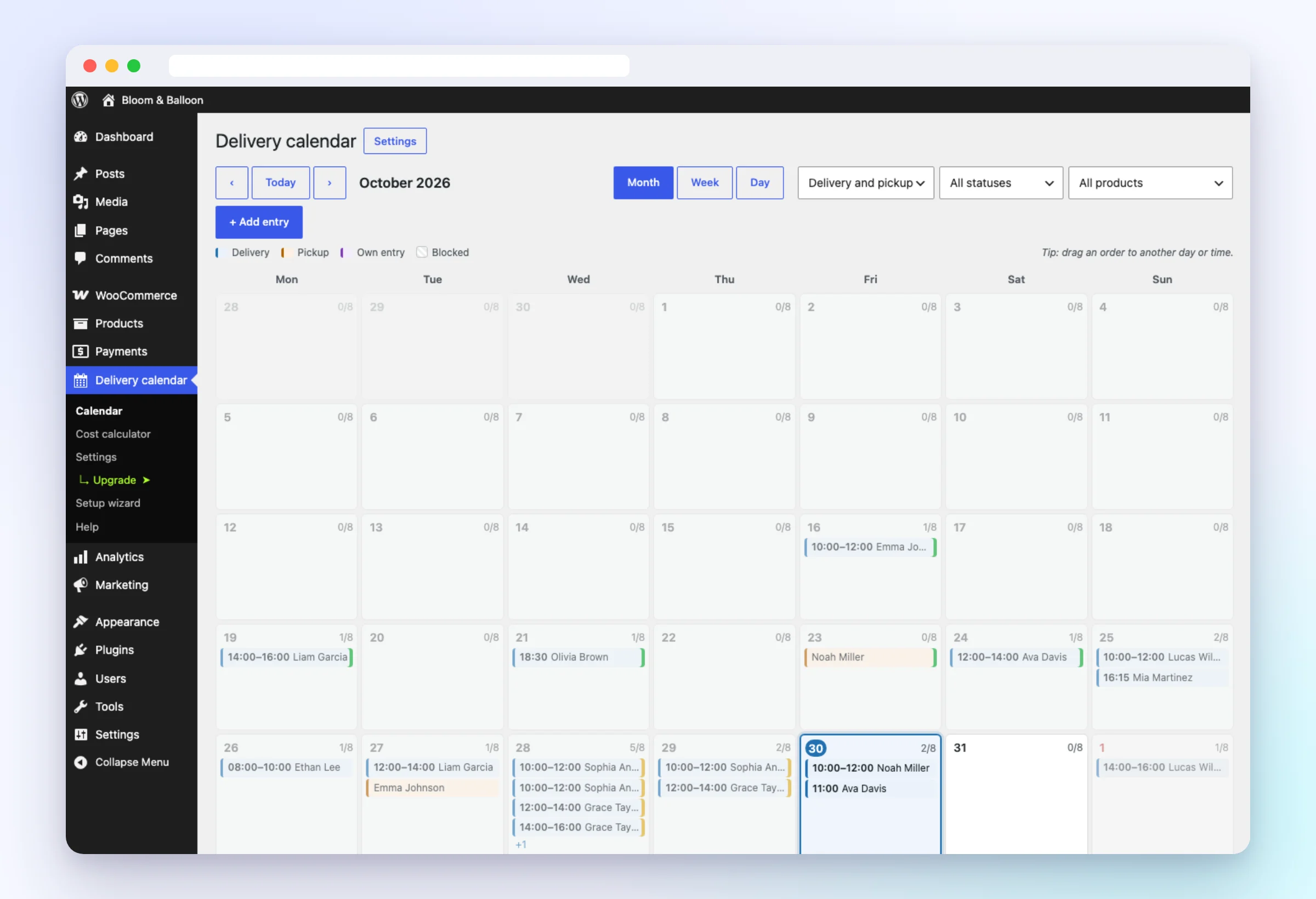
5. Your delivery calendar
Delivery calendar → Calendar: month, week and day. Click an order to see the phone, address and products; drag it to another day or time; block a day or a time window with one click. Add the private .ics link to Google Calendar, iPhone or Outlook (Settings → Calendar sync).
6. Pro: zones, calculator and more
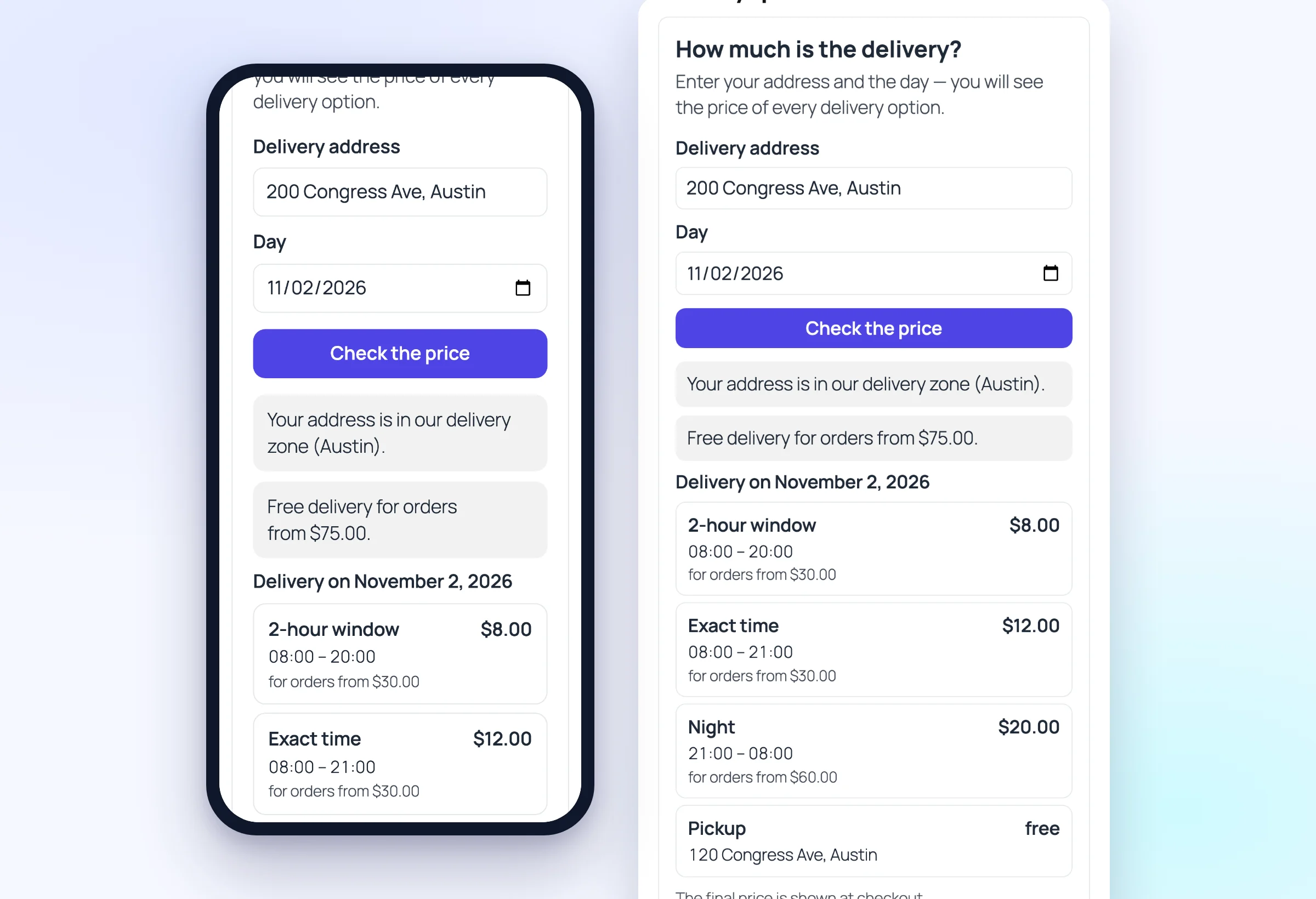
Delivery zone: find your city on the map, “Use this boundary”, set the price per km outside it (needs your Google Maps Platform key). Price calculator: put [dayslot_delivery_calculator] on any page; texts and options in Settings → Customers → Price calculator.
Common questions
Check the Quick start list at the top of the settings: the “Delivery by date” method must be in a WooCommerce shipping zone that covers the customer’s address. With a page builder, put the “Delivery date & time” widget or block on the checkout page.
It is a day off, too early (preparation time) or full: the daily limit or all time windows are taken. The calendar shows how many places are used (e.g. 2/5).
Fill in the Sunday price of each delivery kind; an empty holiday price is the same as Sunday.
Yes: More → Modules. A switched-off module isn’t loaded at all, so it doesn’t slow the site down.
No: on the home page, the catalogue and product pages the plugin loads nothing. On the checkout it adds about 10 KB.