
Delivery time slots let WooCommerce customers choose when their order should arrive. They also give your shop a way to cap the number of deliveries it accepts in each window. This guide uses Dayslot to set up both.
1. Install Dayslot and choose your delivery days
Install Dayslot from WordPress.org, activate it, and open its setup wizard. Set the days you deliver and enter your pickup address if you offer collection. Block dates when you cannot fulfil orders, including holidays or planned closures.
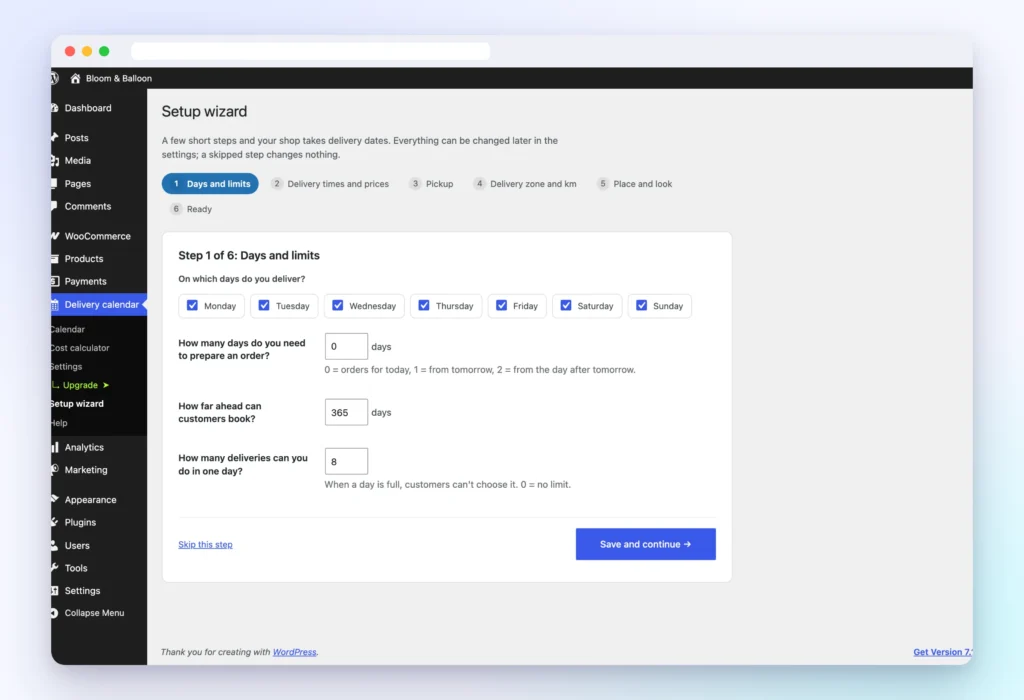
2. Add delivery windows and prices
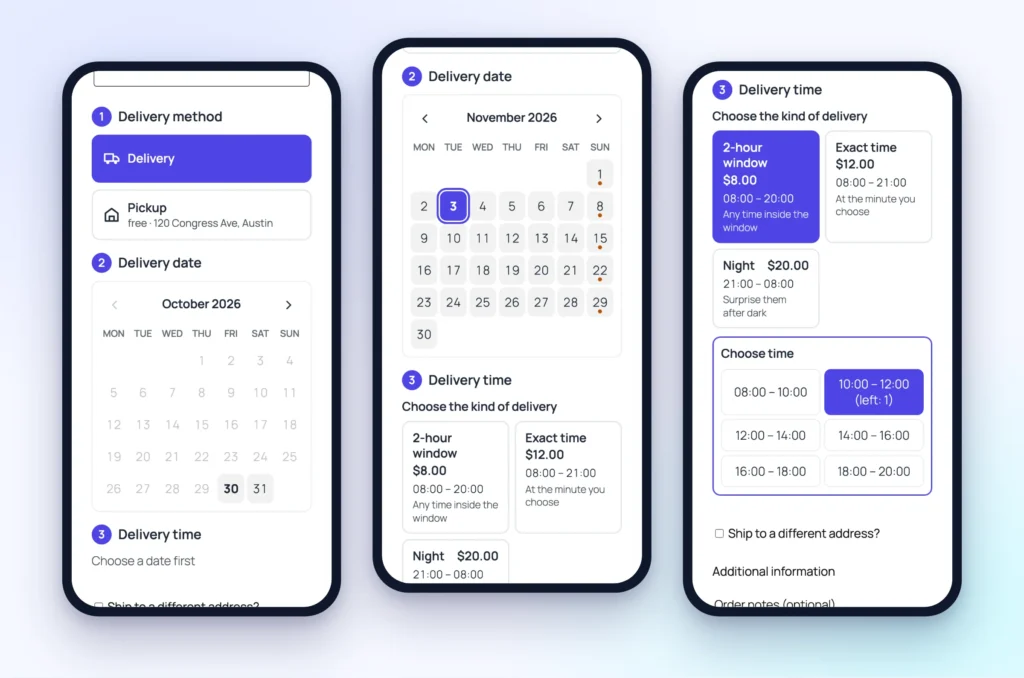
Start with the windows your team can reliably cover. For example, a florist could offer 9:00–11:00 and 14:00–16:00 on weekdays. In Dayslot, you can use time windows or let customers pick an exact time at a configurable interval, such as every 15 minutes. Set the price for each delivery option and check how it appears in the WooCommerce shipping total.
3. Set lead time and capacity
If your team needs two hours to prepare and dispatch an order, set a minimum notice of two hours. Then set a limit per window and, if needed, a daily limit. For example, if your morning route can handle four orders, cap the 9:00–11:00 window at four. Exact-time bookings also use capacity in the window they fall into.
4. Test the checkout as a customer
- Open your store in a private browser window on a phone.
- Add a product to the cart, choose delivery, and confirm that the available dates, time slots and prices match your settings.
- Place a test order and check that the selected time appears on the order and in the Dayslot delivery calendar.
- Use a temporary slot limit of one to test what a second customer sees after the slot is full. Restore your actual limit afterwards.
Dayslot supports both the WooCommerce Checkout block and classic checkout. If your store offers local pickup, test that flow separately and confirm that the pickup address is visible.
Can I change the delivery time after an order is placed?
Yes. You can change the delivery date or time on an order or move it in the Dayslot calendar. If you use that calendar to reschedule, you can choose whether to email the customer.
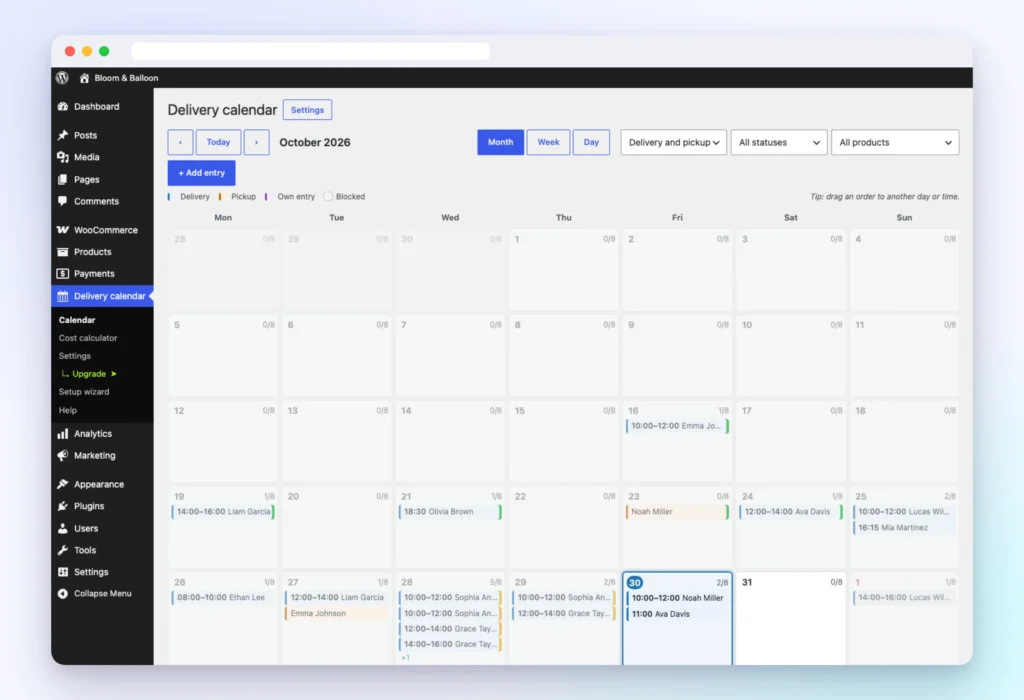
Explore Dayslot for WooCommerce for screenshots of checkout, delivery pricing and the order calendar.
Pingback: How to Set Up Local Pickup Scheduling in WooCommerce